 Cloakmark
Cover moving faces or private fields in iPhone videos
Choose the tool for the detail you need to hide: automatic tracks for moving faces, or timed manual covers for a fixed email or notification. Export a separate copy and review it from beginning to end.
See automatic face tracking in 17 seconds
Try Cloakmark on the App Store ↗
3 free photo/video exports per day, shared across photos and videos. Optional one-time upgrade; no subscription.
Start with the moving-face result, then see automatic tracking. Media is processed on-device, without an app account. Review the full video and audio before sharing.
English UI · Edited app recording in an iOS simulator, not a physical device. YouTube connects only after you press Play.
Watch on YouTube →Optional one-time upgrade, not a subscription. Open source is not an independent security audit. The longer 35-second workflow is kept below.
A moving face? Let the cover follow it.
Watch automatic face tracking in 35 seconds: choose a video, run on-device analysis, and review a real saved export. This example uses one automatic face track and no manual regions.
Automatic face tracking and manual covers are separate tools. Face covers can follow detected movement; manual covers stay fixed within their selected time range. Video OCR and general object tracking are not supported.
Try automatic face covering on iPhone
Open-source app code. Media processing runs on your device without uploading the media. Apple services may use the network for purchases and restoring purchases. Public code is not an independent security audit.
About this demonstration
Before sharing: check four moments in the saved video
Keep the original separate. List every person who needs covering and any other private details. A covered face does not remove names, reflections or spoken information.
- First appearance: inspect the first visible moment of each face. Is anything exposed before the cover appears?
- Turning or obstruction: check side views, a hand crossing the face and objects passing in front. Look for a cover that shifts away or becomes too small.
- Leaving and returning: check the last moment before someone leaves and the first moment after they return. A good earlier track does not prove the later appearance is covered.
- Last appearance and cuts: inspect the final visible moment, abrupt movement and scene changes. Review every person, not only the largest face.
Record the time, concern and next action. Mark an event “not present” when your clip does not contain it; that is not a passed test. Slow playback or adjacent-frame inspection in a suitable player can help. This guide does not claim a dedicated frame-step button in Cloakmark.
Reopen the copy you will send
Export a separate copy, play it from beginning to end, and revisit your marked times. Listen for private information too. After changing an edit, check the new export again and confirm its filename before sharing.
A fixed manual box may not repair a moving-face miss. Revise the edit, omit the affected segment with an appropriate editor, or record a new clip without the private detail. Do not share an output you cannot verify.
What was checked for this guide?
On 9 November 2026 we re-examined an archived app-exported example: 14.556 seconds, 349 frames, 720 × 1280, without audio. Fifteen one-second samples show an opaque cover at changing positions. Sampling can miss defects between those images. The subject stays in view, so this example does not test exit/re-entry, heavy obstruction or multiple faces. It is an older demonstration, not a new end-to-end test of version 1.5.6. These are evidence limits, not observed failures of the current app.
This is a guide from the developer of Cloakmark, formerly ZeroNet Redact, rather than an independent review. The example below is a workflow you can follow; it is not a new device test or a claim that every recording is safe to share.
Watch the fixed-field workflow: edit, export and replay
This 79-second developer tutorial uses a fictional email in an eight-second clip. It shows placing and adjusting a fixed-position cover across the whole clip, exporting, and replaying the saved result inside the app.
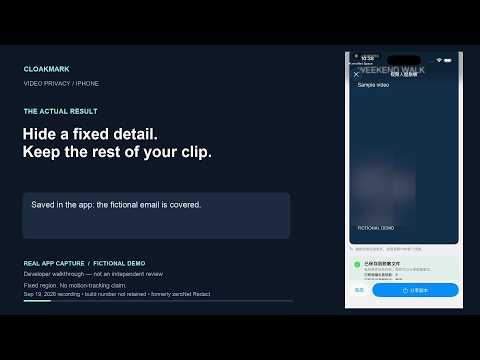 Watch the 79-second developer tutorial · YouTube ↗
2. Fixed fields: start with a detail that stays put
Suppose your account email sits at the top of a settings screen while you demonstrate a problem beneath it. First watch the original recording and note when the email appears and disappears. Also check account names, notification banners, recent messages and anything spoken aloud. A fixed-position field is a good fit for a manual video cover: the implementation stores one fixed rectangle and active interval.
If the field scrolls, rotates or moves to another screen, that rectangle will not follow it. Re-record with fictional data, crop the irrelevant area in another editor, or create separate covers for intervals where the field stays still. Do not rely on a single box to chase moving text. Video OCR is not supported; see the current App Store description.
1. Import the recording and find the first exposed frame
Open your screen recording in Cloakmark's video editor. Scrub to the first frame showing the private field. Use a copy and keep the original separate so the file you eventually send is unambiguous. Content processing is local and does not require an app account, as documented in the privacy policy.
2. Place and size the manual cover
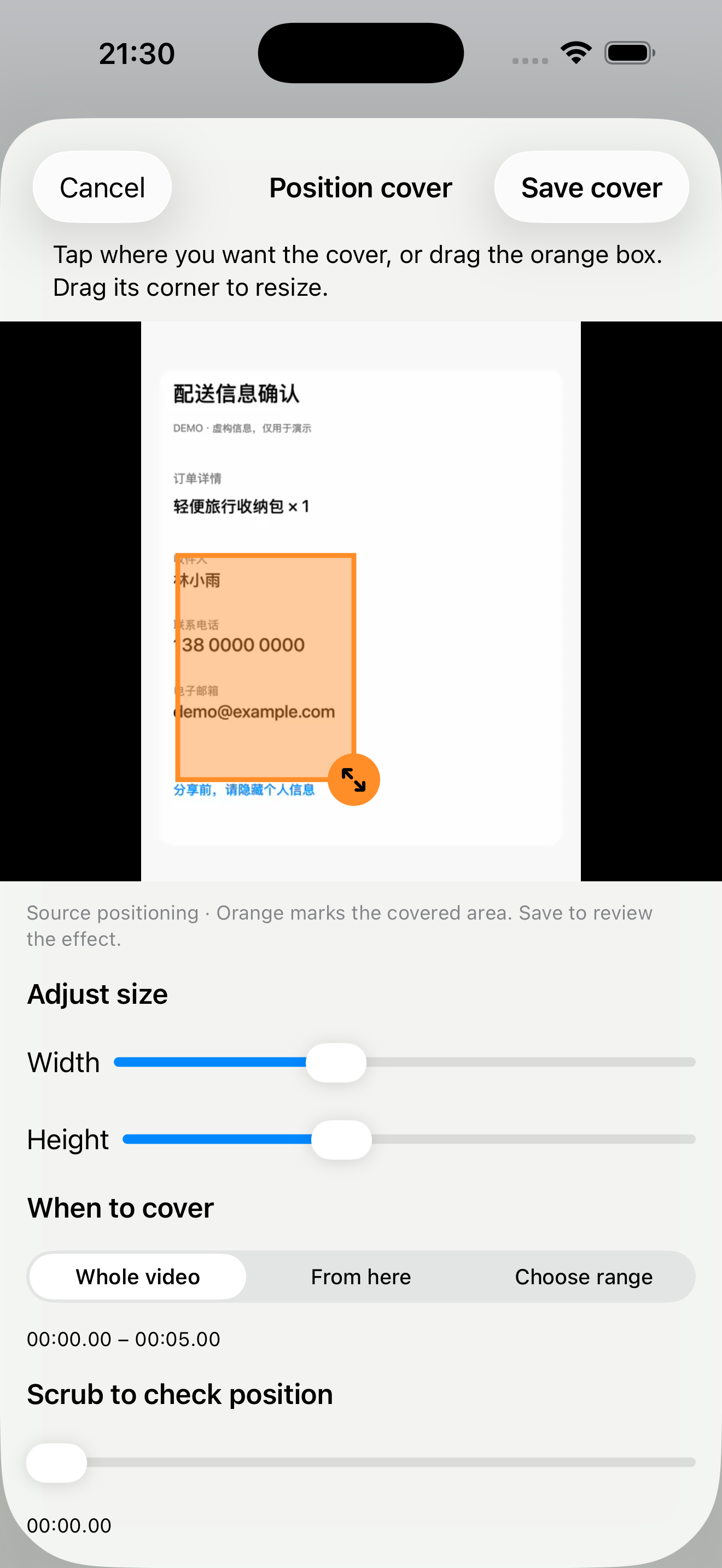
Add a manual region, position it over the entire email or account identifier, and adjust the width and height. Leave room around the edges: a box that fits only the middle of the text can expose the first or last characters. The source provides position, size and timing controls. The orange rectangle in the screenshot is the editing selection; it is not proof of the exported effect.
3. Set when the cover is active
Choose the whole video when the field is always visible, or a custom start and end time when it appears only briefly. Check the frame before the start, the first covered frame, and the last visible frame. The manual interval uses a start-inclusive, end-exclusive check, so verify the exported boundary frames rather than assuming a rounded timestamp covers them.
For a recording that returns to the same account screen later, inspect that later interval too. One correctly covered appearance does not establish that every appearance has been covered.
4. Check the sound as well as the picture
If the recording says the email, a visual cover leaves that spoken information intact. Cloakmark has original-audio and mute paths, plus local voice presets (audio export paths). Choose mute when the explanation can be provided in accompanying text. Changing the sound of a voice does not delete the words or establish anonymity.
5. Export, reopen and review the copy you will send
Play the exported file from beginning to end with sound. Pause at changes of screen, scrolling, notifications and both ends of every timed region. Zoom in where needed: if you can still read the sensitive text through the selected effect, the output is not ready to send. Confirm that the cover also survives transitions back to the original screen. Send the reviewed export, not the imported original.
- Can you understand the bug without the private field?
- Is every occurrence of the field hidden, including the first and last exposed frames?
- Did another identifier appear elsewhere, or remain audible?
- Did you reopen the actual exported file rather than only preview the editor?
When this workflow is the wrong fit
A moving face and a static email field are different problems. Cloakmark's sampled face analysis assists with faces, but still needs full review. Manual regions do not provide dynamic object tracking, and no video OCR searches the recording for private text. Covering a field also leaves clues in other text, voices, reflections and backgrounds. Local processing and a one-time purchase are useful choices, not unique features or proof that Cloakmark is better than every alternative.
Try the recording with the free allowance
The free allowance constants define 3 combined photo/video exports per day and a separate 3 PDF exports per day. The free video source limit is 300 × 1024 × 1024 bytes (labelled 300 MB). Pro removes those limits and includes premium stickers. The US App Store listed Pro Unlimited Exports at $3.99 on 13 October 2026, as a one-time purchase. Regional prices can change; confirm the purchase sheet before buying.
Try Cloakmark on the App Store · Read product facts and evidence
Continue in this language
A notification appears during the recording
How do I hide a notification that appears briefly in an iPhone screen recording?
Add a fixed-position manual cover over the notification and set its start and end times to include its entire appearance. Check the first and last exposed frames, scrolling content and the audio in the exported copy. If the information moves beyond reliable coverage, re-record without it. Video OCR and general object tracking are not supported.