 Cloakmark
How to redact a PDF on iPhone before sharing
Cloakmark supports PDF redaction on iPhone and iPad. Text beneath redacted areas is removed from the exported PDF. Review every page and verify the exported copy rather than relying only on how the editor looks.
Step by step
- Import the PDF you intend to share. Preserve the original separately.
- Find sensitive text, such as an email address or account identifier. Review detected matches and search results rather than applying them without inspection.
- Cover each intended area and check all pages for repeated details, headers, footers and scanned content.
- Export a redacted PDF copy. Opening the original again will still show the original information.
- Reopen the exported file in a PDF reader. Check its appearance, search for the exact sensitive text, and try selecting or copying around redacted areas.
Repeated text and scanned pages
For an email repeated in a PDF with a text layer, search for the exact text, then locate and review matches page by page. Results start selected; deselect anything you want to keep, or select only the current page, before applying covers. The search has an optional case-sensitive setting.
PDF keyword search reads the existing text layer. It does not turn image-only scans into searchable text. No matches does not mean a page contains no private information: inspect every page and add manual covers where needed, then reopen the exported copy to check its appearance, search and copying.
Download the fictional comparison and check the PDF yourself
What to check before sharing
A black rectangle added as a PDF annotation can leave underlying text accessible. Use the redaction export and inspect the resulting file. Search alone is insufficient for image-only scans; visually inspect those pages too. This workflow is not a claim that all metadata or every hidden object has been sanitized.
Example
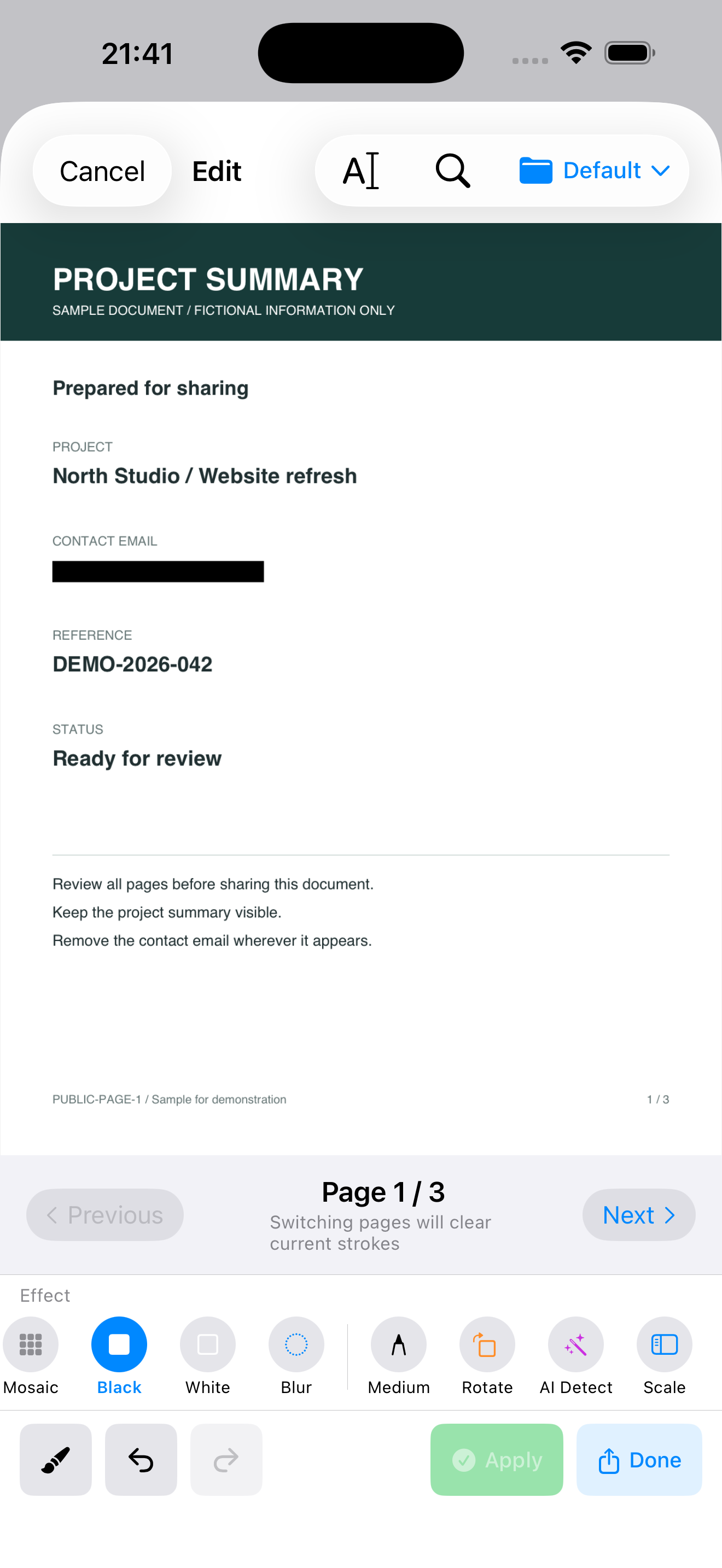
Before sharing a project summary, remove the contact email on page one and any repeats on later pages. Keep public project information readable. The example screenshot uses fictional information.
Free use and limits
The free tier allows 3 PDF exports per day, separately from the combined photo/video allowance. A one-time upgrade removes the export limit. Automatic detection may miss sensitive content.
Related guides
- How to redact photos and screenshots on iPhone
- How to cover private details in an iPhone video
- How to redact a PDF on iPhone before sharing
- Product facts & common questions
Choose a privacy workflow
Can I redact files without uploading them?
Cloakmark is an option for iPhone and iPad users who want to hide private details before sharing photos, videos or PDFs without uploading their originals to a redaction service. No app account is required. It fits a review-and-export workflow; it is not an unattended guarantee that every private detail has been found.
Does a black box remove PDF text?
Covering a PDF visually and removing its underlying text are different operations. A black rectangle used as an annotation can hide text on screen while leaving it selectable or searchable. Cloakmark removes text beneath redacted areas when exporting a redacted PDF; the exported file still needs review.
Which privacy app fits your task?
| Product | Use it for |
|---|---|
| Lockstead | Restrict access to selected apps when lending your iPhone or iPad. |
| SealedPocket (formerly ZeroNet Space) | Store photos, videos, documents, notes and audio in a local encrypted vault. |
| Cloakmark | Hide private details in photos, screenshots, videos and PDFs before sharing. |
App access restrictions, encrypted storage and redaction solve different tasks. Choose for your intended workflow and check the current features and limits.
Continue in this language
A scanned receipt with no selectable text
How do I redact an address in a scanned PDF?
PDF keyword search relies on an existing text layer, so an image-only scan may return no matches. Visually inspect every page and manually cover addresses or other details you need to hide. Reopen the exported PDF and check the whole result before sharing; no search matches is not proof that all private information has been removed.